Object Panel Guide
Panel Overview
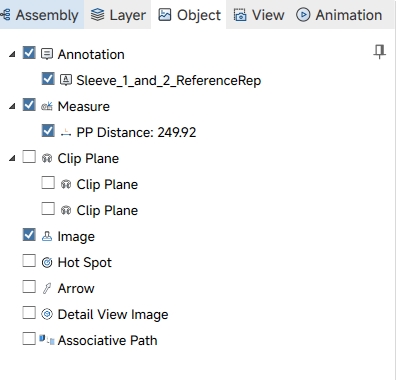
The Object Panel is used to manage all non-geometric auxiliary objects attached to the 3D model, including annotations, measurement data, section planes, hotspots, detail views and other custom markers. All objects are classified and displayed in a hierarchical tree structure. Users can quickly show or hide a single object or a whole category by toggling the checkbox next to each node.
Right-Click Menu Functions
Right-clicking a category node or an individual object node opens the context menu. The Object Panel only supports the delete operation, with no other right-click functions available.
| Menu Item | Function |
|---|---|
| Delete | Deletes the selected single object or all objects under the selected category. |
Object Category Description
The Object Panel classifies auxiliary objects into multiple categories. Each category can be expanded to view individual child objects. Clicking a single object node will select and locate the corresponding object in the 3D viewport.
|
Category
|
Description
|
|---|---|
| Annotation | Text annotation content added on the model surface. |
|
Measure
|
All measurement results, including distance, angle and other dimensional data. |
|
Clip Plane
|
Section planes and section boxes for model cutting and internal structure observation. |
| Note Image | Watermark, seal and stamp images attached to the model. |
| Hot Spot | Interactive marker points used for key position prompting. |
| Arrow Annotation | Arrow markers for position indication and guidance. |
| Detail View Image | Local magnified view screenshots of key model areas. |
| Associative Path | Guide lines for model assembly and disassembly simulation. |



全部评论