Object Panel Guide
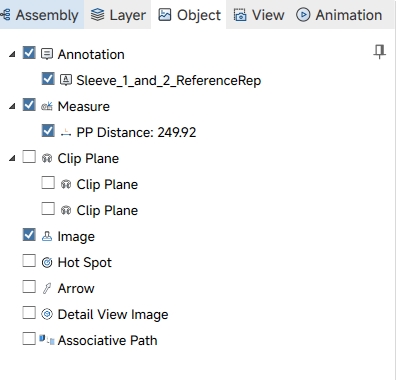
Panel Overview The Object Panel is used to manage all non-geometric auxiliary objects attached to the 3D model, including annotations, measurement data, section planes, hotspots, detail views and othe...
SView | 只需5分钟,0基础也能搞定装配动画制作
自动化装备模组繁杂、联动精度要求严苛,装配调试与后期运维容错率极低。传统二维文字手册表述笼统,面对复杂的机构联动、对位工序,极易造成人员理解偏差,出现装配错位、调试不到位等问题,直接影响设备运行稳定性。专业动画制作流程繁琐,真人实拍无法清晰呈现内部联动结构细节,难以满足自动化设备高精度作业标准。 针对行业内的高精度作业痛点,SView轻量化三维装配动画功能,无需专业设计技能、无需复杂剪辑,可直接依...

SView V11.0.8版本上线 | 文件处理与协同能力全面升级
制造业数字化工具正在迎来新一轮升级,SView全新版本正式上线。 本次迭代跳出单一模型浏览的工具局限,围绕图纸接收解析、现场测量核验、内外协同分享等制造业高频作业全流程完成优化升级,统一移动端操作逻辑与使用体验,打通图纸从接收、处理、核查到流转的完整闭环链路。 智能解压|图纸打开一步到位 新增完整压缩文件处理流程,支持自动、手动双模式解压。解压后直达文件夹打开装配体,无需第三方工具,实现图纸解压打...

SView快捷看图 | 车间看图别再只用CAD了
在制造企业中,真正需要三维建模能力的岗位占比不足20%。而车间装配、现场质检、采购外协等80%一线岗位,核心工作仅集中在模型查阅、尺寸核验、结构分析、物料估算、文件对接等轻量化三维操作。 但长期以来,这类基础作业高度绑定传统专业CAD软件。高额的软件授权费用、复杂的专业操作逻辑、对高配电脑硬件的硬性要求,让企业陷入两难。 针对制造业“重设计、轻现场”的工具适配痛点,SView打破传统CAD软件壁垒...
汽配行业BOM导出|无需CAD依赖,288元解锁SView轻量化方案
汽车零部件制造业产品种类多、批次切换频繁,BOM版本管控严苛。设计、工艺、生产、质检多环节协同,大量相似件、对称件极易混淆,物料清单必须“干净、准确、对 图即对件”。传统方式下,导出的整机BOM动辄上千行,无法按工位拆分,导致错采。 针对这一行业顽疾,SView企业版推出生产级BOM导出功能,无需安装任何专业CAD软件,即可从三维装配体中一键提取符合生产需求的纯净物料清单,真正实现从“设计数据”到...
降本合规双兼顾!SView 助力新能源企业构建高效看图体系
上海某科技有限公司(以下简称 “公司”)是国内领先的分布式光储一体机研发与制造企业,产品覆盖全球80余国,主打海外高端市场。作为一家科技公司,公司严格遵循数据安全管理体系,对图纸加密、外网访问有着极高的合规要求。 随着业务快速扩张,成本管控压力也随之而来。公司技术负责人刘经理向我们介绍道,“设计部门用的是Proe专业软件,但销售、车间质检、加工这些非设计岗,只需要看图,不需要建模。为了这点看图需求...

无需CAD也能导 | SView上新BOM导出,按图索骥,一件一图零返工
打开SView,在文件菜单栏点击转换设置,选择【高精度-零件不分解】 然后再打开图纸,点击【批注-导出BOM】 按需设定BOM范围、输出类型选择合适模版 (模版内容可增删、可保存,下次直接点击模版即可使用,无需重复选择) 导出结果一目了然:Excel表格中,每个零件都配有三维缩略图,名称、图号、材质、数量、自定义属性同步生成,无需手动整理。 使用场景 场景1:开工前物料齐套核对 适用情况:零件数百...
从设计到发货 | SView一站打通非标装备行业
做非标装备的老板,每天面对的都是“一单一议”的挑战。尺寸、重量、形态千差万别,没有标准方案可循。从整机设计到车间加工,再到装箱发货,每一步都藏着效率陷阱。 SView看图纸兼容SolidWorks、CATIA、NX、STEP等近50种CAD格式,配合轻量化加载、爆炸视图、体积重量等功能,为非标装备企业提供从“设计”到“发货”的全流程可视化工具。 痛点一:整机大模型打不开,设计评审卡死 非标装备整机...
模型加载提速 90%!SView 私有化部署为汽车零部件产线提效
湖北某汽车零部件有限公司(以下简称公司)是国内汽车NVH领域(隔音、减震、隔热)的一级供应商,为多家主流车企提供配套服务。作为中日合资企业,公司严格遵循日系管理体系,对软件安装、数据安全有着极高的私密性要求。 技术负责人介绍道,车间单文件普遍300MB以上,以往工人用笔记本打开大模型,卡顿、慢、还经常打不开。更棘手的是,由于私密性要求,普通公有云看图工具无法满足,所以公司需要一款能部署在公司内部、...

内部结构看不清?X-ray模式让图纸“透视”更直观
在制造业的看图过程中,内部结构的可视化呈现直接影响生产效率与设计质量。传统方式需逐层隐藏外部零件,操作繁琐且容易丢失整体空间参照——聚焦局部时,零件在整机中的位置关系变得模糊;反复隐藏与恢复,既耗时又易遗漏关键细节。 SView X-Ray模式,精准解决这个痛点。选中零件正常高亮,其余零件自动变成素描样式。既能突出核心部件,又能保留整体位置参照,看图更直观、更高效。 什么是X-RAY模式 X-Ra...


