Snapshot and Show/Hide Group Guide
2026-07-09 15:47
1. Snapshot
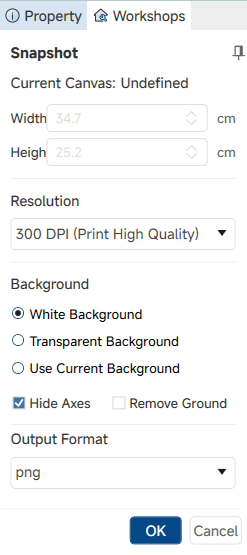
The Snapshot command captures the current viewport scene and exports it as an image file. After activation, a configuration dialog is displayed, allowing users to customize canvas size, resolution, background style and output format before saving the snapshot.
1.1 Command Panel Fields
The snapshot configuration panel includes the following grouped settings:
- Current Canvas: Displays the currently applied paper type, such as A4, A3 and custom sizes.
- Width: Defines the output image width in centimeters.
- Height: Defines the output image height in centimeters.
- Resolution: Selects the output image DPI definition. 300 DPI: Outputs images with the highest clarity; 150 DPI: Outputs images with medium clarity; 96 DPI: Standard screen definition for general preview.
- Background: Selects the background style for the exported snapshot.
- Hide Coordinates: Hides the viewport coordinate axes in the exported image when enabled.
- Remove Ground: Excludes the ground plane geometry from the snapshot when enabled.
- Output Format: Selects the target image file format for export.
1.2 Usage
- Click the Snapshot button to open the snapshot configuration dialog.
- Customize canvas width, height, resolution, background style and output format.
- Click the save button to export the configured snapshot image file.
2. Show/Hide
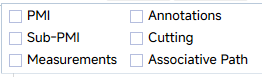
The Show/Hide button group provides independent toggle switches to control the visibility of various auxiliary elements in the scene. Each toggle button switches the corresponding element between visible and hidden state.
- PMI: Toggles the display of PMI annotations attached to top-level models.
- Sub-PMI: Toggles the display of PMI annotations belonging to child components.
- Measurements: Toggles the display of on-scene measurement result data.
- Annotations: Toggles the display of annotation objects and model boards.
- Cutting: Toggles the display of section planes and cutting geometric effects.
- Associative Path: Toggles the display of assembly and disassembly path lines.






全部评论