2D Drawing Display Tab Guide
2026-07-13 14:58
After opening a 2D drawing (DWG/DXF/CATDrawing/SLDDRW, etc.), the ribbon switches to the Display tab. The following commands are available for view restoration, layer control, and smart dimensioning.
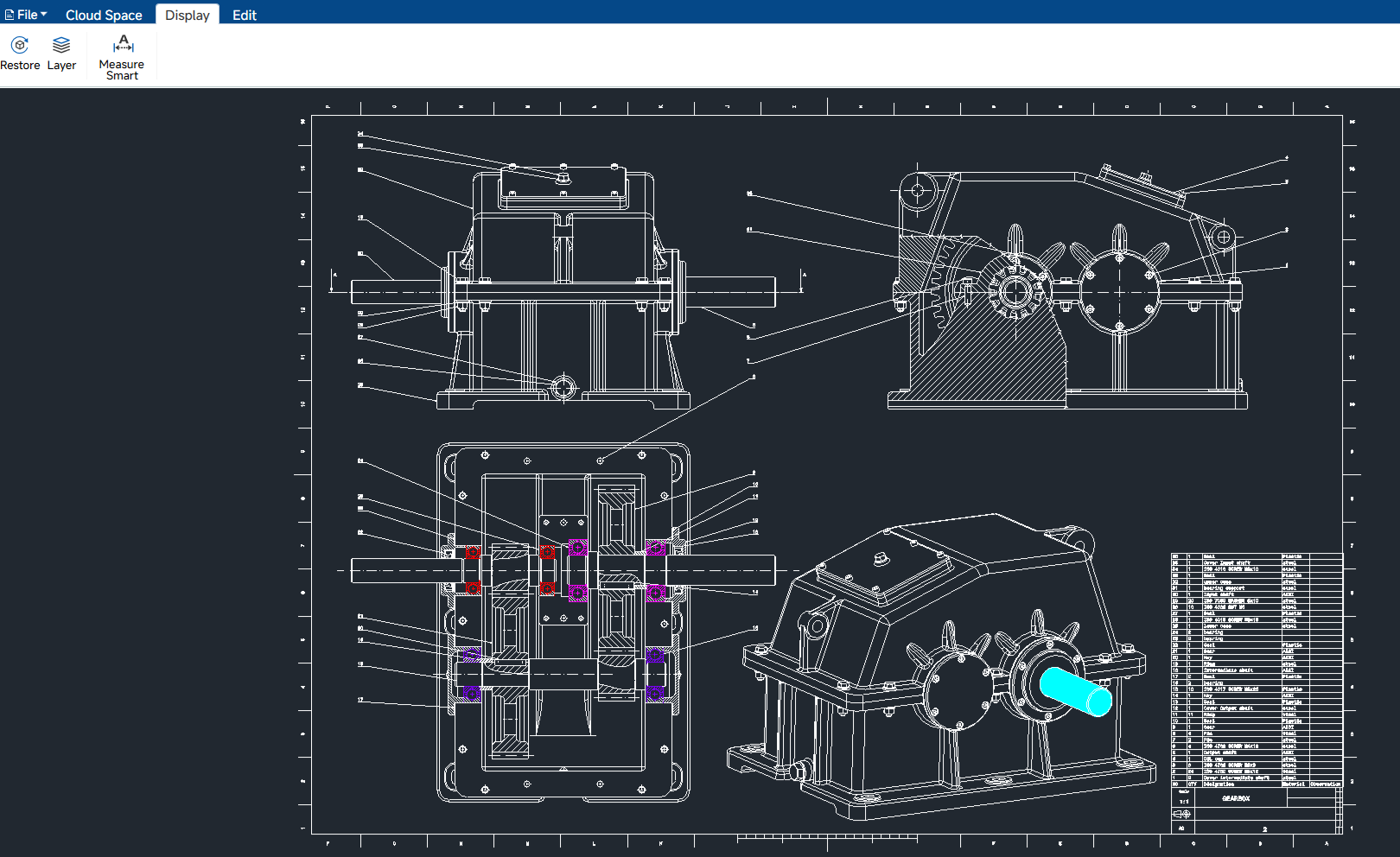
1. Restore
Resets the 2D view to its initial state and fits the entire drawing within the viewport.
Operation:
- Click Display > Restore.
- The drawing is re-initialized and automatically zoomed to its full extents.
Notes:
- This command restores the default view position and scale.
- Any active zoom or pan transformations applied by the user are discarded.
2. Layer
Opens or closes the Layers panel, which lists all layers in the current 2D drawing and allows visibility control.
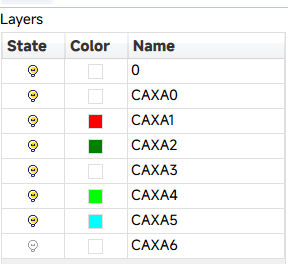
Operation:
- Click Display > Layer. The Layers panel appears.
- To toggle a layer's visibility, click the checkbox in the State column.
- To view only the layer color, refer to the Colour column.
- To identify a layer, refer to the Name column.
- Right-click in the layer list to open the context menu: Open All: Shows all layers; Close Other: Hides all layers except the selected one.
- Click Display > Layer again to close the panel.
Notes:
- Hidden layers are not rendered in the viewport.
- Layer visibility does not modify the original drawing file until the file is saved.
3. Measure Smart
Creates intelligent dimensions by selecting 2D geometric elements such as lines, circles, arcs, polylines, or points.
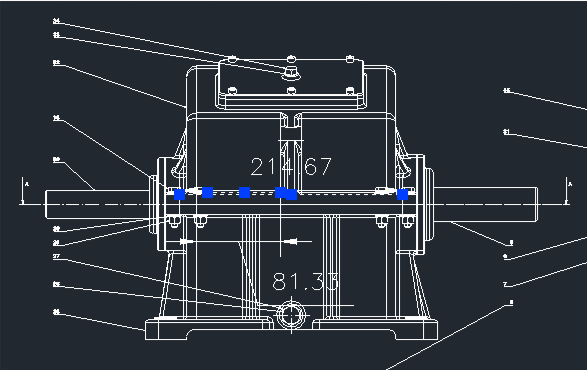
Operation:
- Click Display > Measure Smart. The command enters the first selection step.
- Move the cursor over the first object (line, circle, arc, polyline segment, or point). The entity is highlighted when it can be measured.
- Click the left mouse button to confirm the first selection. The command advances to the second selection step.
- Move the cursor over the second object or point and click to confirm.
- Move the cursor to position the dimension text. A preview of the dimension follows the cursor.
- Click the left mouse button again to place the dimension. The command returns to the first step, allowing continuous measurement.
- PressEsc or right-click to exit the command.
Notes:
- For a line or polyline segment, a linear/aligned dimension is created.
- For a circle, a diametric dimension is created.
- For an arc, a radial dimension is created.
- The dimension value is calculated automatically based on the selected geometry.






全部评论